Zealder Documentation
Text Editor User Guide

Find And Replace
The Find and Replace features allow you to quickly search the text as well as retain its consistency. They also make editing the text easier since you can batch change multiple occurrences of a phrase with just one mouse click instead of manually finding and modifying each one of them.
Since both are closely related, they are implemented as one dialog window with two tabs that let you switch between the Find and Replace option.
For general information on using dialog windows please refer to the Dialog Windows section of the User's Guide.
Find
If you want to find a word or a phrase in your document in a quick and efficient manner, use Text Editor Find command.
To open the appropriate dialog window, press the  button on the main editor toolbar.
This is what the Find and Replace dialog window looks like with the Find tab active:
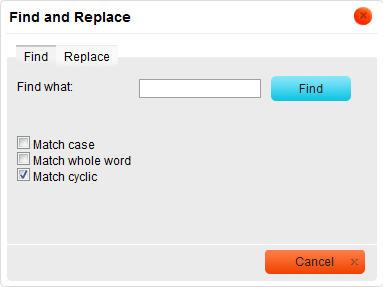
The Find tab consists of a search field and a few options that let you refine the search. Here is the overview of all Find tab elements:
- Find what - is the text field where you enter the word or phrase that you want to find.
- Match case - checking this option limits the search operation to words whose case matches the spelling (uppercase and lowercase letters) given in the search field. This means that the search becomes case-sensitive.
- Example:
- When Match case is checked and the search term is: "option", you will find all instances of "option" with this exact spelling but not when the word is spelled "Option" or "OPTION".
- Match whole word - checking this option limits the search operation to whole words.
- Example:
- When Match whole word is checked and the search term is: "option", you will find all instances of "option", but not the words "optional" or "options".
- Match cyclic - checking this option means that after Text Editor reaches the end of the document, the search continues from the beginning of the text. This option is checked by default.
After you enter the search term and select the options, press the Find button and Text Editor will highlight the first occurrence of the term in the text, starting from the current position of the cursor in text and going down. If you want to jump to the next occurrence of the term in the text, press the Find button again.
Replace
If you want to quickly find a word or phrase in your document and replace it, use Text Editor Replace command.
To open the appropriate dialog window, press the  button on the main editor toolbar.
This is what the Find and Replace dialog window looks like with the Replace tab active:
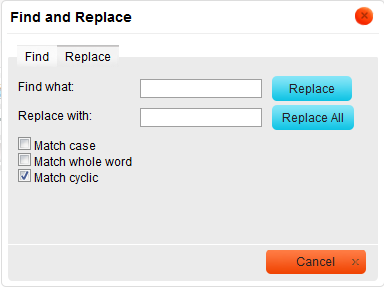
The Replace tab consists of a search field, a replace field and a few options that let you refine the operation. Here is the overview of all Replace tab elements:
- Find what - is the text field where you enter the word or phrase that you want replace in the document.
- Replace with - is the text field where you enter the word or phrase that will replace the search term in the document.
- Match case - checking this option limits the search and replace operation to words whose case matches the spelling (uppercase and lowercase letters) given in the search field. This means that the search and replace becomes case-sensitive.
- Example:
- When Match case is checked and the search term is: "option", you will find and replace all instances of "option" with this exact spelling, but not when the word is spelled "Option" or "OPTION".
- Match whole word - checking this option limits the search and replace operation to whole words.
- Example:
- When Match whole word is checked and the search term is: "option", you will find and replace all instances of "option", but not the words "optional" or "options".
- Match cyclic - checking this option means that after Text Editor reaches the end of the document, the search and replace continues from the beginning of the text. This option is checked by default.
After you enter the search term as well as the replace term and select the options, press the Replace button. Text Editor will highlight the first occurrence of the term in the text, starting from the current position of the cursor in text and going down. If you want to replace the highlighted term, click the Replace button once more. Then, if you want to jump to the next occurrence of the term in the text, press the Replace button again.
You can also replace all occurrences of the search term in the document in one go. In order to do that, press the Replace All button. Text Editor will then replace all occurrences in the whole document at once and display a pop-up window with the result of the operation.